





How Does ONES Support Enterprise Sign-In with RADIUS Authentication and MFA?
 November 18, 2026
 ONES & SONiC
TL;DR
ONES now acts as a RADIUS client, forwarding every sign-in to the organization's existing RADIUS server, which checks credentials against a directory such as Active Directory and returns access granted or denied. ONES never stores directory passwords and never connects to the directory directly. Setup is a Remote Authentication connector with three details: host, port (1812 by default) and shared secret. When MFA is enabled on the RADIUS server, ONES presents a one-time code prompt automatically, with no additional MFA configuration.
Introduction
ONES is the platform where network teams configure switches, manage fabrics, and enforce the policies that keep data centers running. Access to a platform like that should meet the same standard as the rest of the enterprise.
With RADIUS authentication, it does. ONES now acts as a RADIUS client, handing every sign-in to the organization’s existing RADIUS server. User identities stay where they are already managed.
How does RADIUS authentication work in ONES?
ONES does not validate passwords itself. Each sign-in is forwarded to the RADIUS server. The RADIUS server checks the credentials against the organization’s directory, such as Active Directory. It then returns a decision: access granted, or access denied.
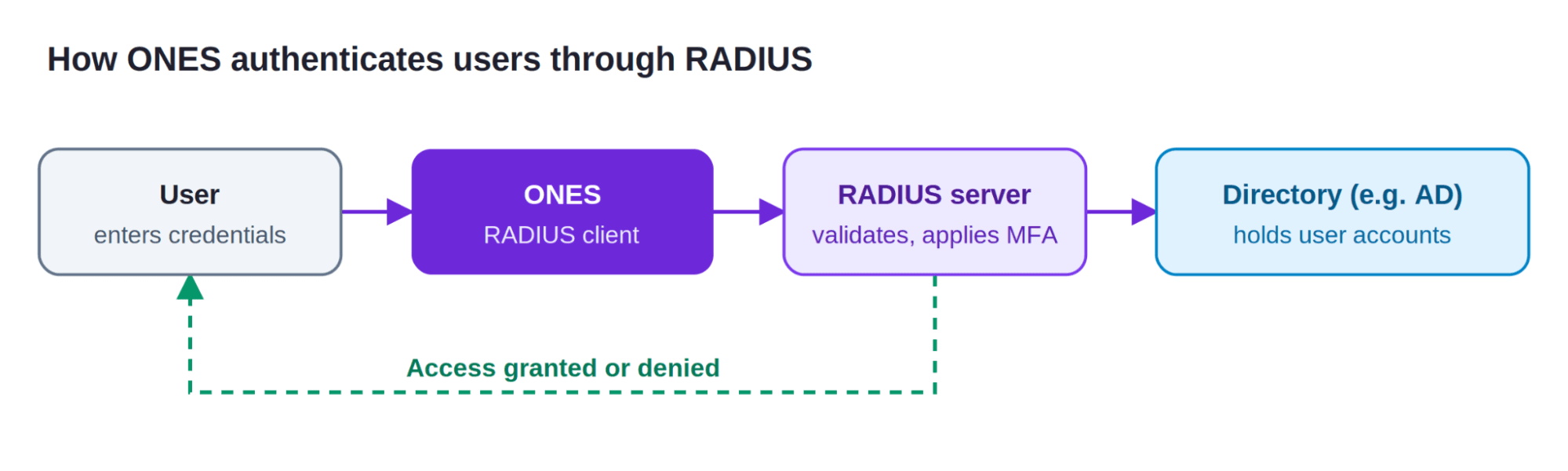
ONES never stores directory passwords and never connects to the directory directly. All credential checks stay with the RADIUS server.
How do you connect ONES to a RADIUS server?
RADIUS is configured in ONES as a connector under Data Connectors → Add Connector → Remote Authentication. The connection requires three details:
- Host: the IP address or hostname of the RADIUS server.
- Port: the RADIUS authentication port, 1812 by default.
- Shared secret: the credential that links ONES to the RADIUS server. It must match the client entry configured on the RADIUS side.
On the RADIUS server, the ONES server is registered as a trusted client using the same shared secret.
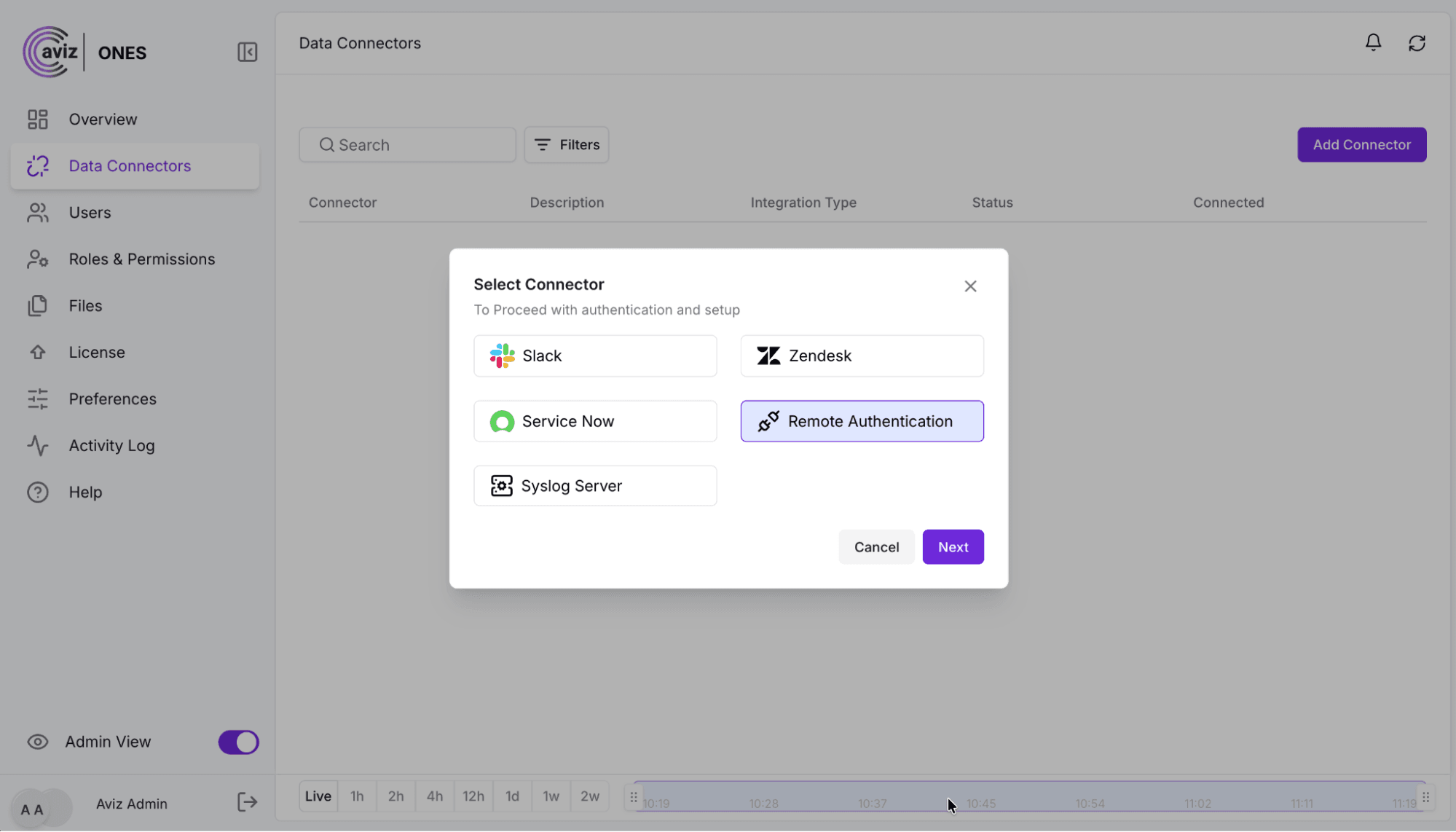
Step 1: Click Add Connector and choose Remote Authentication.
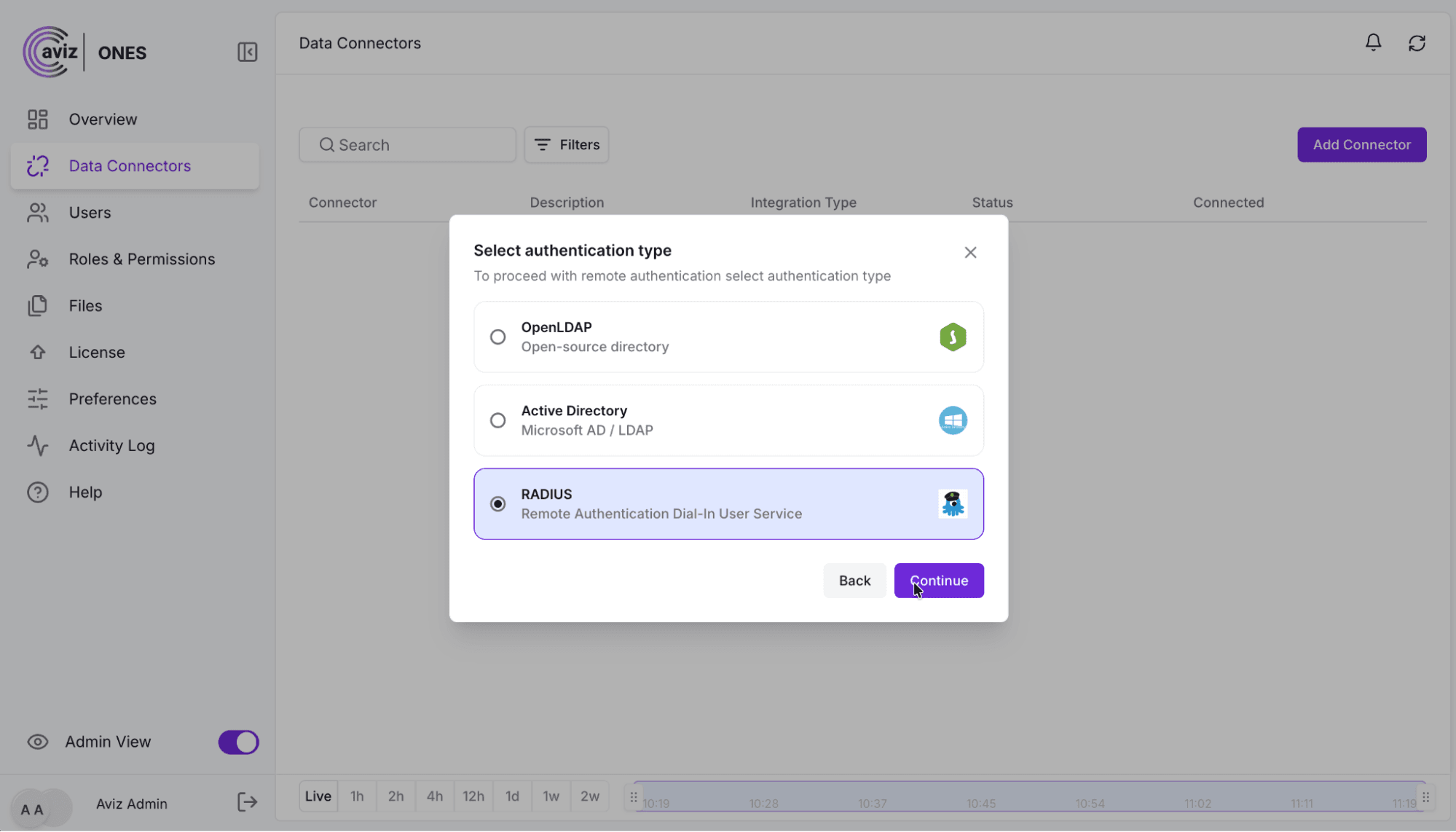
Step 2: Select RADIUS as the authentication type.
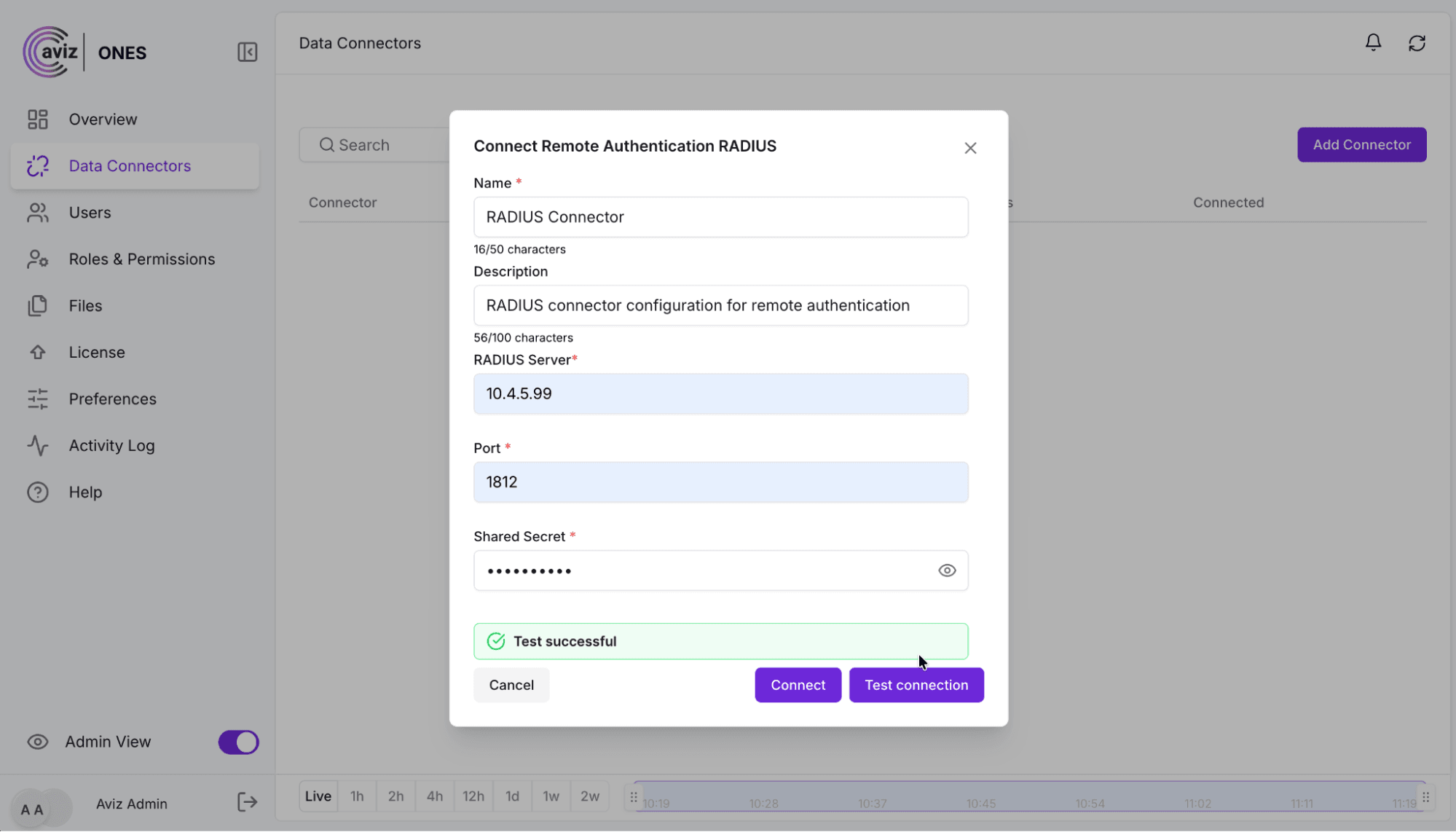
Step 3: Enter the RADIUS server, port and shared secret, then click Test connection.
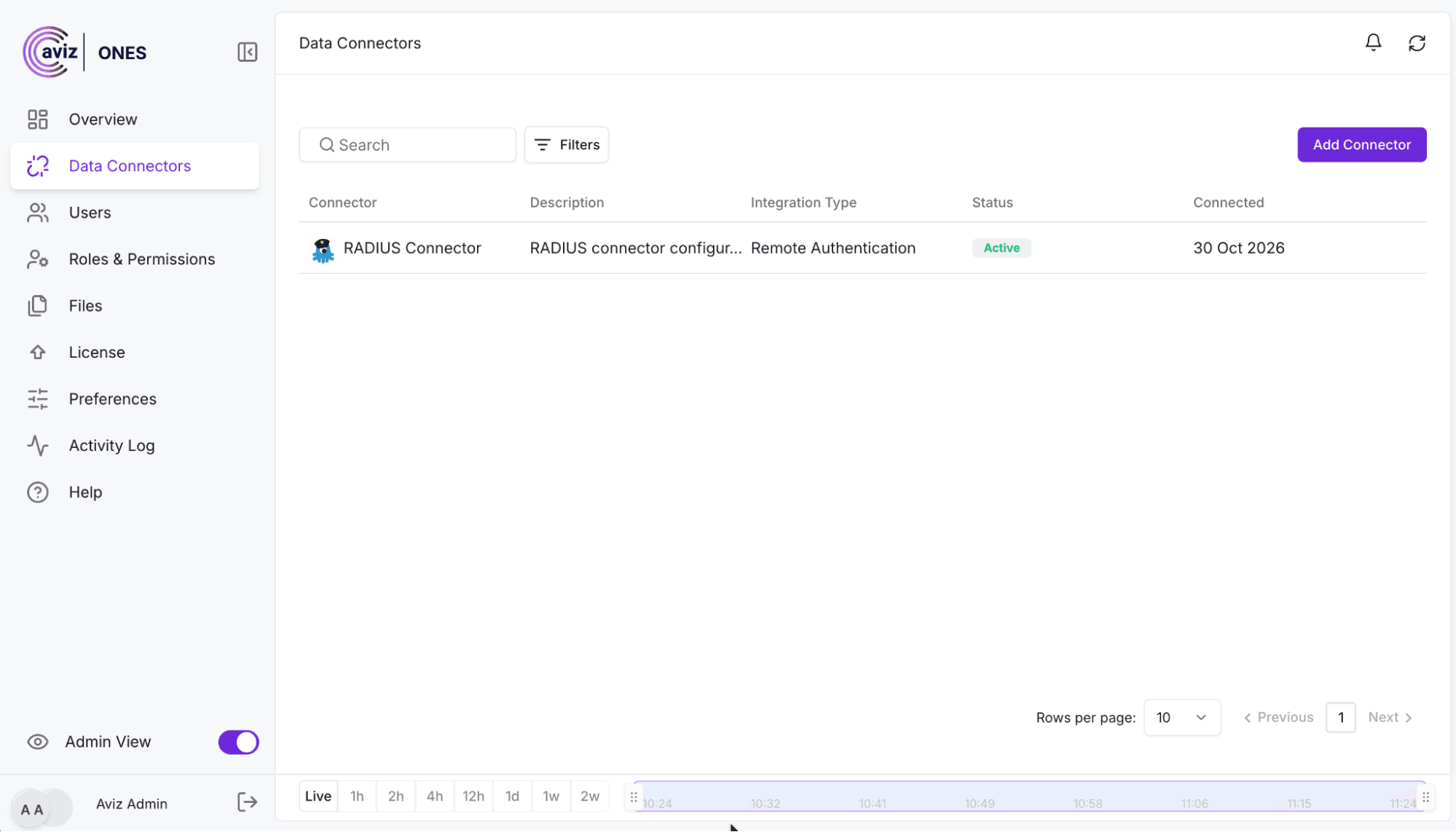
Step 4: Click Connect. The RADIUS connector now shows as Active.
Does ONES support MFA with RADIUS authentication?
When MFA is enabled on the RADIUS server, ONES supports it automatically. After the username and password are accepted, ONES presents a one-time code prompt. The user enters the OTP to complete sign-in. ONES requires no additional MFA configuration.
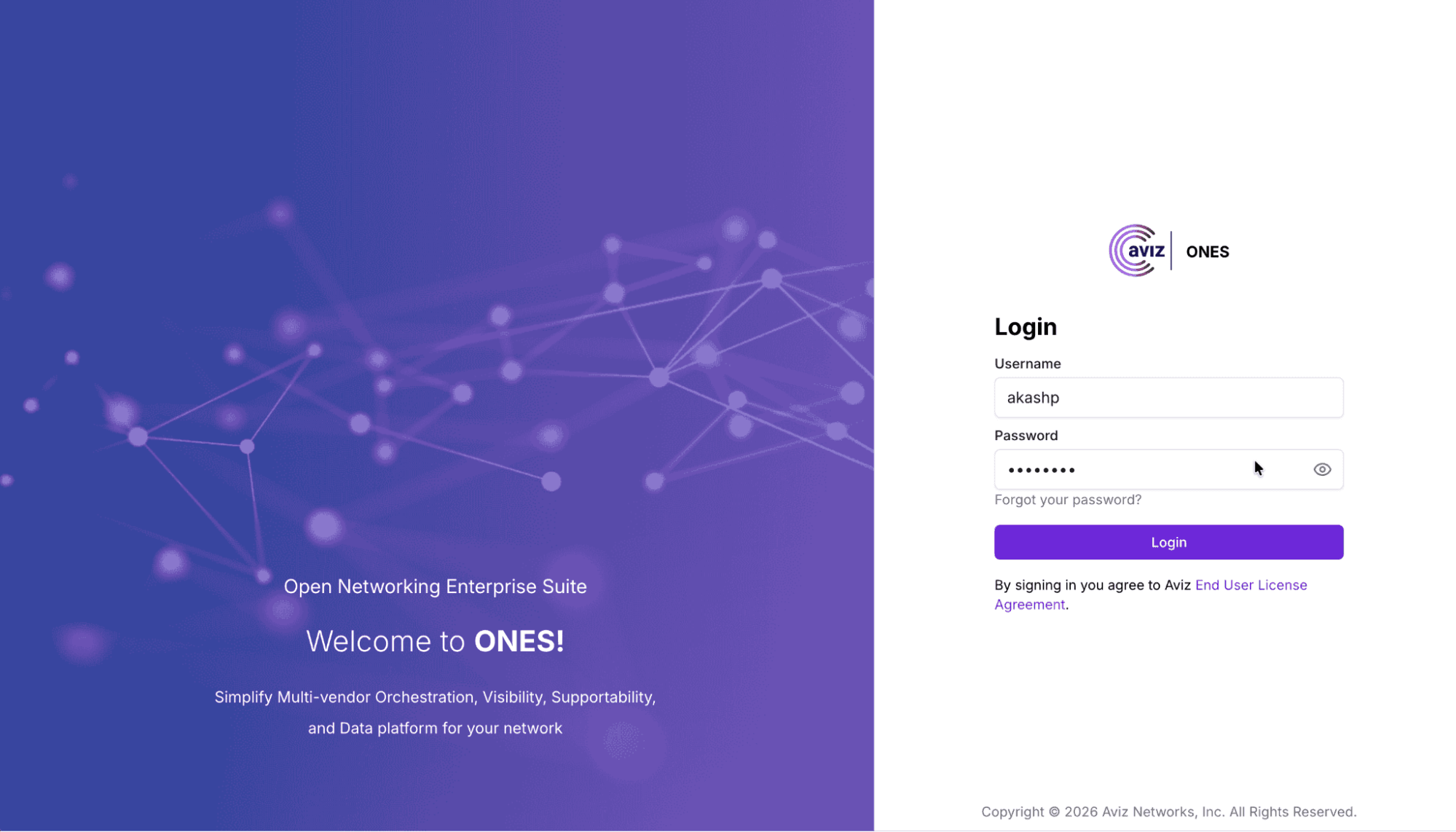
Step 1: Sign in with your username and password.
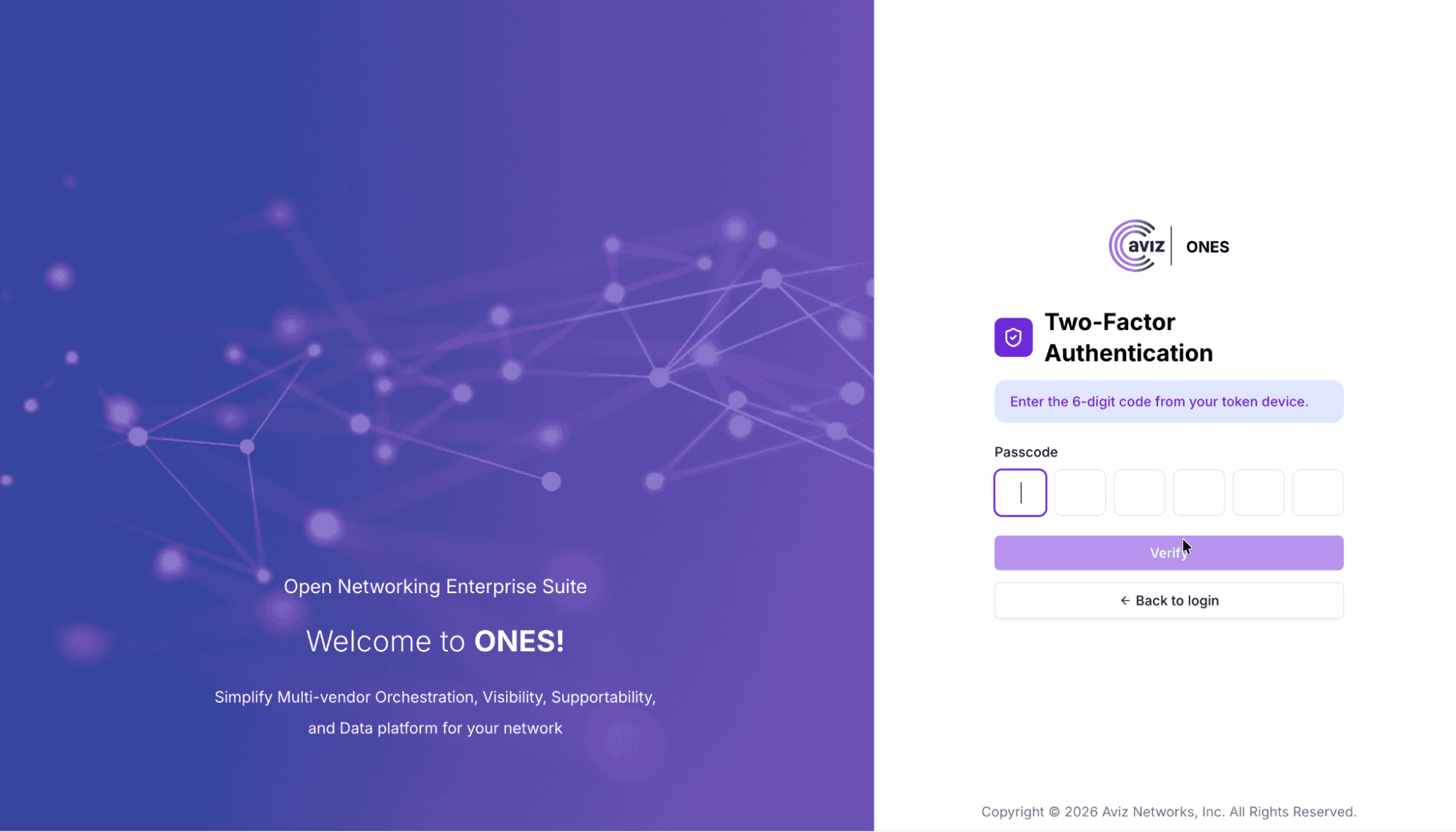
Step 2: Enter the 6-digit code from your authenticator app.
See how Aviz ONES fits into the identity infrastructure you already run: explore Aviz ONES.
What are the benefits of RADIUS authentication for ONES?
- No user management in ONES: administrators no longer create usernames and passwords for every operator. Anyone the RADIUS server authorizes can sign in.
- Scales with the organization: from a small team to thousands of users, with no additional administration in ONES.
- Access follows the directory: when an account is disabled in the directory, ONES access ends with it.
- Centralized policy: password rules and MFA are enforced by the RADIUS server and applied consistently across ONES.
Conclusion
With RADIUS support, ONES fits into the identity infrastructure enterprises already trust. Credentials, MFA and access decisions remain under the control of the organization’s RADIUS server. ONES delivers secure, centralized sign-in without adding another account system to manage.
FAQ
What is RADIUS authentication in ONES?
ONES acts as a RADIUS client. It forwards every sign-in to your organization's existing RADIUS server. That server checks the credentials against a directory such as Active Directory and returns access granted or denied.
Does ONES store directory passwords or connect directly to Active Directory?
No to both. ONES never stores directory passwords and never connects to the directory directly. All credential checks stay with the RADIUS server.
How do I connect ONES to a RADIUS server?
Go to Data Connectors, click Add Connector, and choose Remote Authentication. Select RADIUS, enter the server, port and shared secret, and click Test connection. Then click Connect. The connector shows as Active.
What details do I need to configure the RADIUS connector?
- Host: the IP address or hostname of the RADIUS server.
- Port: the RADIUS authentication port. The default is 1812.
- Shared secret: the credential that links ONES to the RADIUS server. It must match the client entry on the RADIUS side.
Does ONES support MFA with RADIUS authentication?
Yes. If MFA is enabled on the RADIUS server, ONES supports it automatically. After the username and password are accepted, ONES shows a one-time code prompt, and the user enters the 6-digit code from their authenticator app.
Do I need to configure MFA separately in ONES?
No. ONES requires no additional MFA configuration. MFA and password rules are enforced by the RADIUS server and applied consistently across ONES.
What are the benefits of RADIUS authentication for ONES?
- No user management in ONES. Anyone the RADIUS server authorizes can sign in.
- Scales from a small team to thousands of users with no extra administration.
- Access follows the directory, so disabling an account in the directory ends its ONES access.
- Password and MFA policy stay centralized on the RADIUS server.


